Lesson 4
Your First AI Project
From zero to a live personal website
← → arrow keys to navigate
What We'll Build
By the end of this lesson, you'll have built and published your own website, using AI.
About Me
A short introduction about who you are, what you do, and what you're passionate about.
Contact
Email, LinkedIn, and a contact form so people can reach you.
No coding knowledge required. Just English and an AI tool.
What You'll Need
A Computer
Mac, Windows, or Linux. Anything works.
Internet Connection
To install tools and deploy your site
30 Minutes
That's it. Seriously.
Everything we use today is free. No credit card needed.
Setting Up Your Tools
A one-time setup that takes about 10 minutes
Step 1: The Terminal
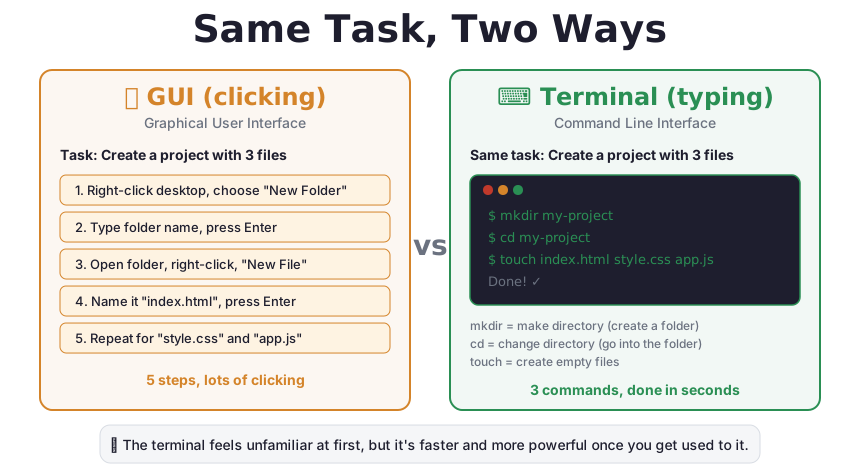
The terminal is a text interface to your computer. Instead of clicking icons, you type commands.
Mac
Open Spotlight (Cmd + Space), type 'Terminal', hit Enter
Windows
Search for 'PowerShell' in the Start menu, open it
It looks like a hacker movie, but it's just a different way to talk to your computer. You'll type simple commands, nothing scary.
Terminal vs. GUI: Same Task, Two Ways
The terminal is just a text-based way to do the same things you do by clicking.
Step 2: Install Node.js
Claude Code needs Node.js to run. Think of it like installing an app that other apps depend on.
What to do
- Go to nodejs.org
- Download the LTS (recommended) version
- Run the installer, click Next through the defaults
- Done. That's it.
Node.js is free, safe, and used by millions of developers worldwide. It's the foundation that Claude Code runs on.
Step 3: Install Claude Code
Open your terminal and type this command:
npm install -g @anthropic-ai/claude-code
What this means
npm: the package manager that came with Node.jsinstall: add a new tool-g: install it globally (available everywhere)@anthropic-ai/claude-code: the tool itself
Press Enter and wait about 30 seconds. You'll see some text scroll by. That's normal.
Step 4: Sign In
In your terminal, type:
claude
This launches Claude Code. The first time, it will ask you to authenticate.
Option A
Sign in with your Claude.ai account (if you have a Max subscription)
Option B
Use an API key from console.anthropic.com (pay per use)
Either option works. Claude.ai Max gives you unlimited usage. API keys charge per message.
Step 5: Create a Project Folder
Every project needs its own folder. Let's create one:
mkdir my-website && cd my-website
Translation
mkdir my-website
Make a new folder called 'my-website'
cd my-website
Go into that folder
Think of it like creating a new folder on your desktop, then opening it. Same thing, just typed.
Step 6: Launch Claude Code
Now that you're in your project folder, type:
claude
You'll see Claude Code's welcome screen with a prompt waiting for your input.
You're ready to build. Everything from here on is just typing in English.
Let's Build
Creating your personal website with AI
Your First Prompt
Type this into Claude Code:
Create a personal website for me. Include a hero section
with my name [Your Name], an about section, and a contact
section. Make it modern and clean with a light color scheme.
This is all it takes. Claude will plan, write HTML, CSS, and JavaScript, and create the files for you.
What Happens Next
Claude creates files
index.html (structure), styles.css (design), maybe script.js (interactivity)
You stay in control
Claude asks permission before creating files. You approve each step.
Reviewing the Result
Open the index.html file in your browser to see your website.
Mac
open index.html
Windows
start index.html
Look at the result. What do you like? What would you change? That's your next prompt.
This is the iterative workflow: build, review, refine. No need to get it perfect on the first try.
Iterating: Round 1
Tell Claude what to change using plain English:
Change the color scheme to blue and white
Make the heading text bigger and bolder
Add a photo placeholder in the about section
Each change takes seconds. No need to learn CSS or HTML. Just describe what you want.
Iterating: Round 2
Now let's add more substance:
Add a section for my work experience with 3 cards showing different roles
Add a footer with my email address and a link to my LinkedIn profile
Notice how you're building the site feature by feature, just by describing each piece.
Adding Interactivity
Want your site to do things? Just ask:
Add a contact form with name, email, and message fields
Make the navigation smooth-scroll to each section
Add a dark mode toggle button
You're writing JavaScript without knowing JavaScript. Claude translates your intent into code.
Making It Mobile-Friendly
One prompt makes your site work on every device:
Make sure the website looks good on phones and tablets too. The navigation should collapse into a hamburger menu on small screens.
Before
Desktop-only layout that breaks on phones
After
Responsive design that adapts to any screen size
This is called 'responsive design', and Claude handles all the complexity for you.
The /init Command
Type /init in Claude Code to create a CLAUDE.md file: a memory file for your project.
/init
What it does
- Creates a CLAUDE.md file in your project
- Records what the project is about
- Stores your preferences and conventions
- Next time you open Claude Code here, it remembers everything
Think of it as writing a note to your future self (and to Claude). It makes every future session smarter.
Look What You've Built
From a blank folder to a complete website:
- A modern, responsive personal website
- Hero section with your name and tagline
- About section telling your story
- Work experience with styled cards
- Contact form for visitors
- Dark mode toggle
- Smooth navigation
All from English instructions. No code written by hand.
Saving & Sharing
Don't lose what you've built
Why Save Properly
You've built something. Don't lose it. Version control is like save points in a video game.
Without version control
- One copy of your files
- Delete something? It's gone.
- Made a mistake? Hope you remember what to undo
With version control
- Every version saved
- Go back to any point in time
- Experiment freely. You can always undo.
Git Basics with Claude
Tell Claude to set up version control:
Initialize a git repository and make the first commit with the message "Initial website"
Translation
git= version control system (tracks changes)repository= a project tracked by gitcommit= a save point with a description
Claude runs the git commands for you. You just describe what you want.
GitHub: Your Code in the Cloud
GitHub is like Google Drive for code. Your project is stored online, safely.
- Create a free account at github.com
- Tell Claude: 'Push this project to a new GitHub repository'
- Claude creates the repo and uploads your code
- Your project is now safely stored and shareable
GitHub is free for personal projects. Your code is backed up and accessible from anywhere.
The Safety Net
With git, you can always go back:
Undo last change
Undo the last commit
See history
Show me the git history
Compare versions
What changed since yesterday?
This is why developers love version control. Experiment boldly. You can always go back.
Going Live
Putting your website on the internet
What 'Deploying' Means
Right now, your website lives on your computer. Deploying means putting it on the internet.
It's like the difference between a document on your desktop and a Google Doc shared with a link.
Free Hosting Options
GitHub Pages
Built into GitHub. Free. Simple. Perfect for personal sites.
RecommendedNetlify
Drag-and-drop deploy. Free tier. Automatic HTTPS.
Vercel
Modern platform. Free for personal projects. Fast global CDN.
All three are free for personal websites. GitHub Pages is the simplest if you already have a GitHub account.
Deploy with Claude
Tell Claude to deploy your site:
Deploy this website to GitHub Pages
Claude will:
- Create the right configuration files
- Set up the GitHub Pages deployment
- Push the changes
- Give you the live URL
In about 2 minutes, your site will be live at https://yourusername.github.io/my-website
Your Own Domain (Optional)
Want yourname.com instead of a GitHub URL? You can add a custom domain.
- Buy a domain name (~$10/year) from a registrar like Namecheap or Google Domains
- Tell Claude: 'Configure my custom domain yourname.com for GitHub Pages'
- Claude handles the DNS configuration
This is optional. The free GitHub Pages URL works perfectly fine.
Congratulations
You built and deployed a personal website. No coding knowledge needed. Just English and AI.
Share the link with friends and family. You built this.
Growing From Here
Your website was just the beginning
What Else Can You Build?
Blog
Share your thoughts with a blog powered by AI-generated layouts
Portfolio
Showcase your work with a visual gallery and project descriptions
Small Business Site
Landing page, services, pricing, and contact form
Tool / Calculator
Build a simple calculator, converter, or productivity tool
Landing Page
A focused one-pager for a product, event, or idea
Documentation
Organize knowledge into a clean, searchable reference
All achievable with the same workflow you learned today.
The Repeatable Workflow
This works for any project:
Start small
Begin with the basics. Get something working. Then add features one at a time.
Stay in English
You never need to read or write code. Just describe what you want and review what you get.
Lesson 4
Your First AI Project
Now go build something